


Contents
- Problem #1: Unclear profile ownership and access
- How do you fix your fragmented Google Business Profile access?
- Problem #2: Duplicate profiles
- How do you know whether to merge or remove a duplicate profile?
- How do you prevent duplicate profiles?
- Problem #3: Wrong or conflicting business details
- How do you keep every profile’s business details accurate?
- Problem #4: Identical content at every location
- How do you localize profiles without rewriting each one?
- Problem #5: Lack of a review management system across locations
- How do you manage reviews across many locations?
- Problem #6: Verification and suspension problems
- How do you get every location verified?
- How do you keep locations verified and avoid suspensions?
- How do you audit all your Google Business Profiles?
- How do you manage multiple Google Business Profiles long-term?
- 1. Decide who’s accountable for each profile
- 2. Schedule regular checks
- 3. Decide what to handle in-house and where to get help
- FAQs
- Fix your multi-location Google Business Profile management woes with the experts

Key takeaways
Managing multi-location Google Business Profiles (GBPs) presents a set of challenges distinct from those for single-location brands. You can fix each one through an audit, a shared process and playbook that all your locations follow, and assigning profile owners and access to team members.
Multi-location businesses face six common problems with Google Business Profile (GBP) management. Each one has a fix you can implement:
- Unclear profile ownership and access: When your Google Business Profiles were created under a former employee’s or agency’s accounts and leave you locked out, find out who owns each profile, then move them all under one business group.
- Duplicate and unmerged profiles: Acquisitions and rebrands create two separate profiles for one location, splitting your reviews. Decide whether to merge them or remove one, then follow Google’s process.
- Wrong or conflicting business information: A location may change its phone number or operating hours for the holidays, and the GBP may not reflect the updates. Keep one source of truth for each location’s details and update every profile from it.
- Identical categories and content across all locations: Copying one profile across 30 locations makes every listing look the same to customers. Keep the brand’s core details consistent across locations, then localize categories, links, and content where it counts.
- Lack of a review management system across locations: Without a system guiding all locations, customers won’t find a consistent voice across responses. Have a shared review management playbook across all your locations and a review management platform like ReviewAccelerationFX.
- Verification and suspension problems: Each location has to be verified separately, and a rebrand or domain change can de-verify a profile. Treat verification as an ongoing process with an owner for every profile, and roll out big changes to a few profiles first.
These problems tend to show up as a business grows or expands into new locations. This guide is for teams managing roughly five to 50 locations, and for anyone who inherited a pile of profiles through an acquisition.
If you would rather manage listings, reviews, and location data from one dashboard, LocalFX, WebFX’s local SEO software, is built for that hands-on approach. Read on for the fix to each problem:
- Problem #1: Unclear profile ownership and access
- Problem #2: Duplicate profiles
- Problem #3: Wrong or conflicting business details
- Problem #4: Identical categories and content at every location
- Problem #5: Lack of a review management system across locations
- Problem #6: Setting up and verifying many locations at once
- How do you audit all your Google Business Profiles?
- How do you manage multiple Google Business Profiles long term?
- FAQs
Your Revenue Growth Starts Here
Tell us about your business, and we’ll create a custom plan to grow your traffic, leads, and predictable revenue.
Problem #1: Unclear profile ownership and access
Unclear profile ownership and access means your business doesn’t control its own profiles, and nobody has a full list of who can edit them. This problem usually starts when an employee or agency creates profiles using their own login and then leaves the team without proper turnover.
As a result, the people who can edit your profiles end up scattered across personal accounts. In the worst-case scenario, you lose access entirely until you go through Google’s recovery process.
How do you fix your fragmented Google Business Profile access?
Start by finding out who controls each profile, then consolidate all profiles under a single ownership structure. You can then update every location without tracking down whoever holds the login.
By doing so, you protect your brand’s account security, streamline company-wide listing updates, and prevent unofficial edits.
Instead of sharing single-account usernames and passwords or granting individual user access at the store level, organize your team’s access using the Google Business Groups feature. This GBP feature allows businesses to manage permissions centrally without risking losing access when team members leave or agencies’ contracts expire.
Here’s how to do that:
- Audit current users in the “People and access” settings. Review each listing’s user list to identify who has administrative control and note their assigned roles, which can be Primary Owner, Owner, or Manager.
- Claim your orphaned listings. An orphaned listing is a live, verified GBP with no active manager within your current organization. If an ex-employee or former agency holds Primary Ownership, use the “Claim this business” or “Own this business?” option on the public profile to initiate an ownership transfer request.
- Revoke access for unauthorized or personal accounts. Remove any personal emails, past agency emails, or former employee accounts.
- Consolidate profiles into a Business Group: Grouping your locations under a single company-owned organization account lets you update and share access to multiple profiles at once.
- Set a Primary Owner. Use a master corporate account as the Primary Owner of the profiles and the entire business group. That way, even if other profile managers leave the organization, your business still has the primary ownership of the profiles.
- Assign role-based permissions. Grant access at the group or location level based on strict operational need (through their work emails, of course). Give manager access to store or franchise managers, and reserve owner status for corporate administrators.
Problem #2: Duplicate profiles
Duplicate profiles are two or more Google Business Profiles for the same location. They split that location’s reviews, photos, and customer attention. Google allows only one profile per business, and a profile marked as a duplicate doesn’t appear on Search or Maps.
Unclear GBP ownership is a common cause of duplicate profiles. Other causes include relocations, acquisitions, and rebrands.
How do you know whether to merge or remove a duplicate profile?
Start by confirming that both profiles represent the same business at the same address. Then, either merge or remove one of them:
- Merge them when each profile has history worth keeping, such as reviews and photos.
- Remove the extra profile if it was created by mistake and has little or no activity.
If you can’t access one of the profiles, regain access first.
If the two profiles turn out to be different businesses sharing one address, keep both. Each business needs its own name and distinct signage, and you can appeal if Google flags one as a duplicate.
How do you prevent duplicate profiles?
Here are a few habits to keep your team from creating Google Business Profiles you’ll have to clean up later:
- If a location moved, update the address on the existing profile instead of creating a new one.
- Before you create a profile for a new or acquired location, search Google Maps for its address and name to check whether one already exists.
- Search Google Maps for every location once a quarter to catch duplicates that slip through.
Problem #3: Wrong or conflicting business details
When a location’s GBP shows incorrect operating hours or a phone number, customers drive to a closed store or call a number that no one answers. This scenario can lead to negative reviews on your profile and customers calling your competitor instead.
One location can catch this by checking its own profile. If you have 30 locations, assign team members to update all 30 and have them check the live pages, too.
Wrong details usually reach multi-location profiles in two ways:
- When a team member updates each profile manually, some profiles get skipped. And when every location manager can edit their own listing, some updates may be incorrect.
- Google may update your profile when sources report that your profile has outdated information.
How do you keep every profile’s business details accurate?
Keep one master record with every location’s approved details, and start every profile update from it. A master record is a single spreadsheet or database, with one row per location, that your team treats as the final word on names, addresses, phone numbers, hours, and links.
You can keep your master record in a spreadsheet or in a tool like LocalFX, which lets you update and sync your listings from a single dashboard.
Here’s how to make your master record work across every profile:
- Lock the locations’ core details and approve everything else. Only corporate should change the business name format, main phone number, address, and website link. Managers can request changes to hours or photos, but one person from corporate approves each request and updates the master record first.
- Make brand-wide changes in bulk. If you have 10 or more locations, Google’s bulk location management lets you edit profiles by uploading a revised spreadsheet.
- Set holiday hours weeks ahead, through one person. Identify which locations close, lock the decision by a fixed date, and have one person publish special hours to every profile in a single bulk update. For example, if every location closes on Thanksgiving, confirm exceptions by early November and publish then, instead of leaving it to 30 managers the week of.
- Answer Google’s suggested edits within four days. Watch update notifications across every profile, and respond within four days to accept or reject Google’s suggestion. If you don’t respond within this time frame, Google may automatically publish an update to your profile if other publicly available information supports the edit.
- Check your live profile. After every bulk or holiday update, open each location’s profile on Google Search or Maps to check that the changes are live. If Google keeps reverting a detail, look for the conflicting source, starting with that location’s page on your website. Then check third-party listings such as Yelp.
Problem #4: Identical content at every location
If all your locations’ Google Business Profiles have the same descriptions, photos, website links, and secondary categories, will that confuse your customers? Probably. A customer comparing your branches can’t tell which branch offers what they need and may assume that your locations have nothing unique to offer.
Some details should match everywhere, such as your business name and core services. However, photos, landing pages, and descriptions about the neighborhood must be unique to each location.
For example, a dental group with six offices links every profile to its homepage rather than to individual location pages. A patient who checks the Tulsa office’s profile lands on a page that opens with the Dallas location and has to look for the right address. Some will back out and try the next result.
How do you localize profiles without rewriting each one?
Build one profile template at the corporate level for details that should be consistent for all locations, such as your business name format and primary category. Then, have each location fill in the unique local details, such as the following:
- Website link to that location’s own page
- Location’s exterior, interior, and team photos
- Services of the location
- A sentence or two about the neighborhood
That way, each location fills in a short form instead of the corporate team member writing every location’s profile from scratch. Assign one person at each location to fill in the unique details.
Problem #5: Lack of a review management system across locations
Before someone decides which brand to trust and purchase from, most people check a business’s reviews: the average rating, how recent the reviews are, and whether the business responds to their customers.
If your multi-location business has no review management system, customers may see one profile with a 4.7 average rating and hundreds of reviews and replies from your team. Then they’ll see another location with a lower average rating and negative reviews left unanswered.
Without a review management system that every location follows, each location handles reviews and complaints its own way, and customers won’t find a consistent voice across responses. If you have a shared process for review management, each location uses the same playbook to maintain your brand’s voice in its responses to reviews. Pair that process with a management platform like ReviewAccelerationFX, and your corporate team gets a bird’s-eye view of all your locations’ reviews.
How do you manage reviews across many locations?
Managing reviews across several locations seems overwhelming. The fix is to have a shared review management playbook across all your locations and a review management platform:
- Write a playbook for responding to and managing reviews. Decide who replies to which reviews and how fast. For example, local managers answer positive reviews within 48 hours, and corporate approves replies to negative reviews within 24 to 48 hours. Add rules for when to escalate, such as refunds, safety issues, or legal threats.
- Give every location the same voice guide. Your locations don’t have to sound robotic in their responses. Include a few approved responses that they can use, and two or three sample replies that they can personalize. Give them a list of words and phrases to avoid.
- Monitor every location from one dashboard. Tools like ReviewAccelerationFX let you sync third-party reviews into a single dashboard, making it easy to monitor and respond to reviews for several locations.
Pro tip: If one of your locations has fewer reviews than most, ask recent customers to leave reviews through a platform like ReviewAccelerationFX. Ensure you send them the correct profile URL for the location they visited!
Problem #6: Verification and suspension problems
Every location’s GBP must pass Google’s verification before it appears on Search or Maps. For multi-location businesses, getting each location verified is tedious, especially if you don’t qualify for bulk location management.
Bulk verification requires 10 or more locations of the same business, and service-area businesses aren’t eligible. Even brands that qualify need a clean account first, since duplicate or suspended profiles don’t count toward the 10.
In addition, once your Google Business Profile is verified, it doesn’t stay verified forever. Google may de-verify accounts that don’t actively manage their profiles, and a profile can get unpublished and asked to verify again after Google finds conflicting business information online. A brand-wide change, such as a new website domain after an acquisition, affects every profile at once, so one misstep can put several locations under review or suspension simultaneously.
How do you get every location verified?
Check whether you can request bulk verification. If you’re not eligible, verify each location individually and spread the work across your team.
Before you request verification, take care of these:
- Resolve profile ownership gaps and duplicate profiles.
- Keep each location’s business registration, licenses, and recent utility bill (with the business name and address matching the GBP) in one shared folder. Google may ask for these documents as evidence during bulk verification, and you’ll need them if a profile is ever suspended.
How do you keep locations verified and avoid suspensions?
Treat verification as an ongoing process. Keeping your location name, address, and contact details consistent across your profile, website, and other listings reduces the risk of losing verification.
Here are best practices to stay verified:
- Update your website first when making brand-wide changes. Before updating your Google Business Profile for a rebrand, a new domain, or an address change, update your website first so Google finds the same details there. Then update a few profiles, confirm they stay live, and roll out to the rest.
- Assign team members to manage locations’ profiles. Profiles may get unpublished or need reverification when accounts are not actively managed. Assign profile owners for your locations. They’ll be accountable for maintaining the location profiles assigned to them by responding to reviews, uploading new photos, or adding new services.
- Check every location’s profile status regularly. It’s easy to overlook a profile that’s been unpublished or asked to verify again if you’re managing multiple profiles. Make checking your locations’ profile status part of your process for maintaining your Google Business Profiles.
- When your profile is suspended, prepare before appealing. You can submit an appeal only once, so gather all necessary documents before you do so. Don’t create a new profile for that location while you wait for Google’s decision, as it might result in duplicates in the future.
How do you audit all your Google Business Profiles?
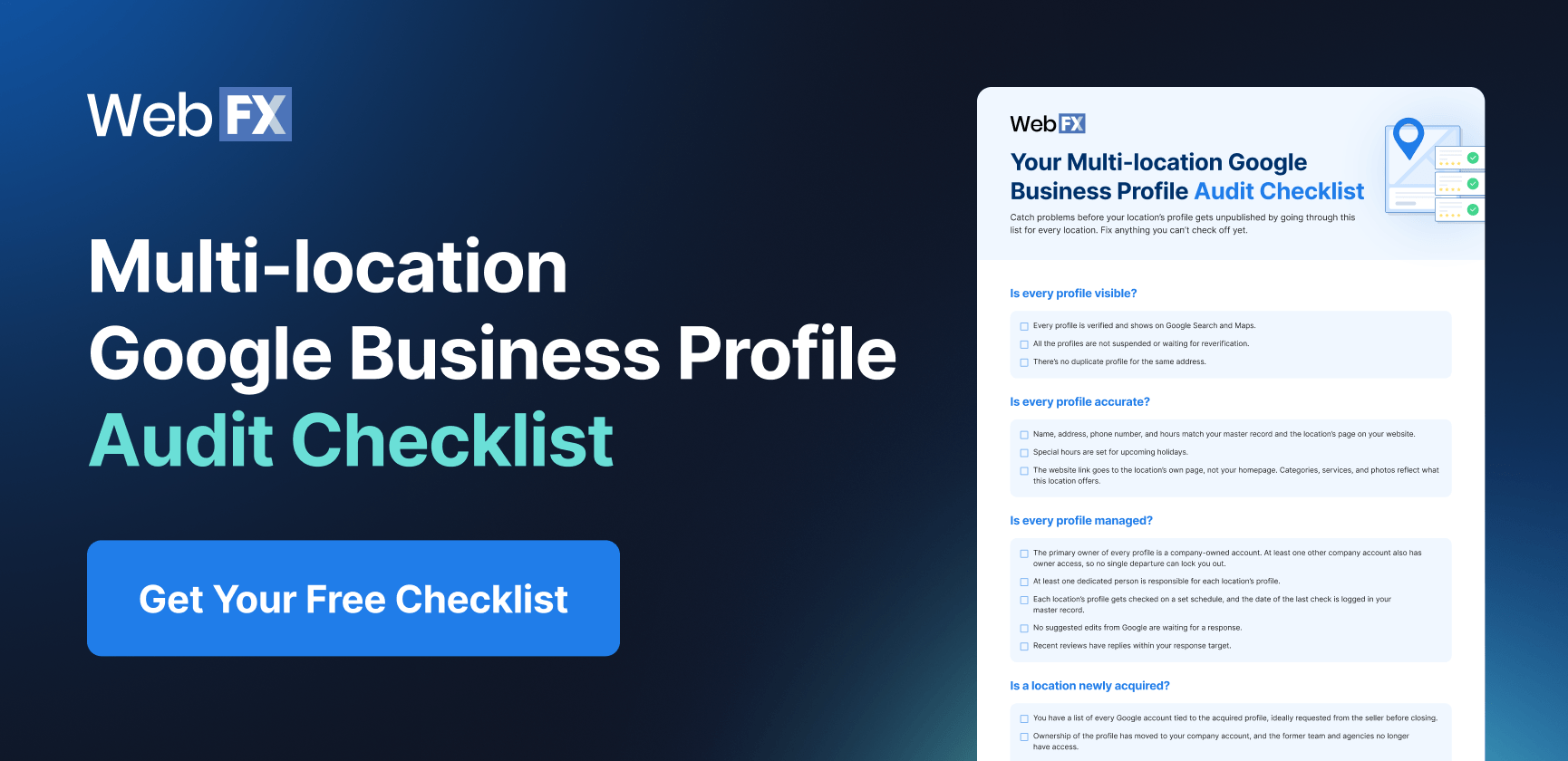
Multi-location businesses need a systematic audit of their locations’ Google Business Profiles to check whether each profile is still visible and the details are still accurate. A regular audit catches problems before a profile gets unpublished or suspended.
Get your free Google Business Profile audit checklist for multi-location businesses:
How do you manage multiple Google Business Profiles long-term?
You’ve cleaned up your profiles, and they’re all visible and published. Here’s how to keep them that way:
Think of long-term management as proactive maintenance of your profiles so they stay visible despite the changes they undergo: acquisition, operating hours during holidays, and team members leaving their roles.
1. Decide who’s accountable for each profile
Split who owns which tasks between corporate and each location. Corporate should own anything that needs to be consistent across locations, while each location should be in charge of local information.
Define these tasks in a live document shared with every location manager, so everyone knows their responsibilities in their GBP management.
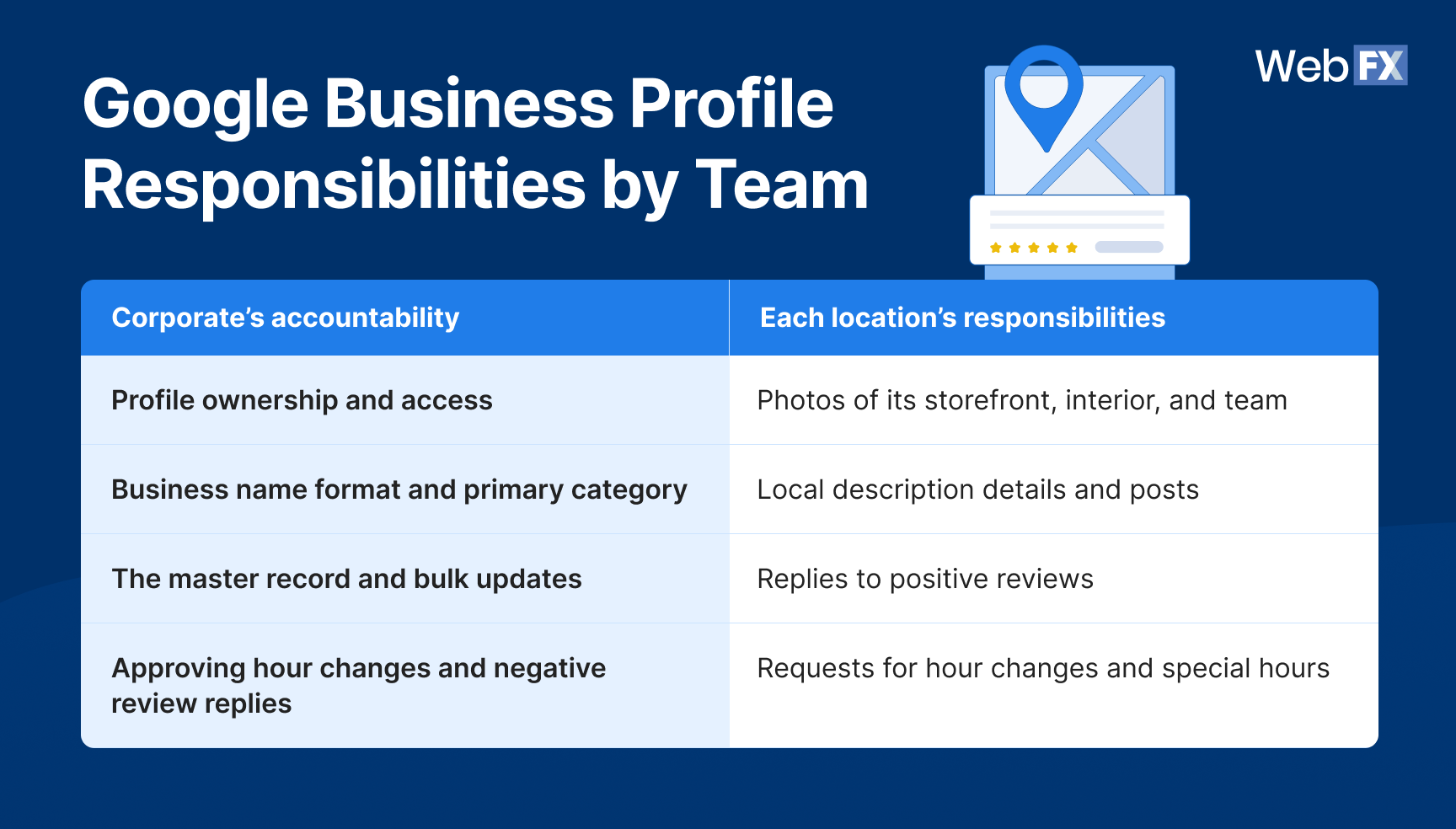
Table view
| Corporate’s accountability | Each location’s responsibilities |
| Profile ownership and access | Photos of its storefront, interior, and team |
| Business name format and primary category | Local description details and posts |
| The master record and bulk updates | Replies to positive reviews |
| Approving hour changes and negative review replies | Requests for hour changes and special hours |
When a location manager leaves, their profile management duties move to their replacement on day one.
2. Schedule regular checks
Add recurring profile checks as scheduled tasks in your calendar. That way, nobody forgets, and everyone’s aligned on the regular checks.
Here’s a schedule you can start with:
| Cadence | What to check |
| Daily or as soon as an alert comes in |
New reviews and suggested edits from Google |
| Monthly |
Each profile’s status and whether its details are live and correct |
| Three to four weeks before each holiday |
Special hours for every location |
| When a location opens, closes, or is acquired |
The full audit checklist for that location |
| After a rebrand or domain change |
Profile status for every location, a few days after the rollout |
| Twice a year | The full audit for every location |
3. Decide what to handle in-house and where to get help
How much of this work should your team take on depends on two things:
- How many locations you manage
- How much time your team actually has
If you have five locations, your in-house team can probably handle it with a spreadsheet. With 40 locations and a two-person team, you’ll likely need software, an agency partner, or both.
Here are your options and when to choose one over the others:
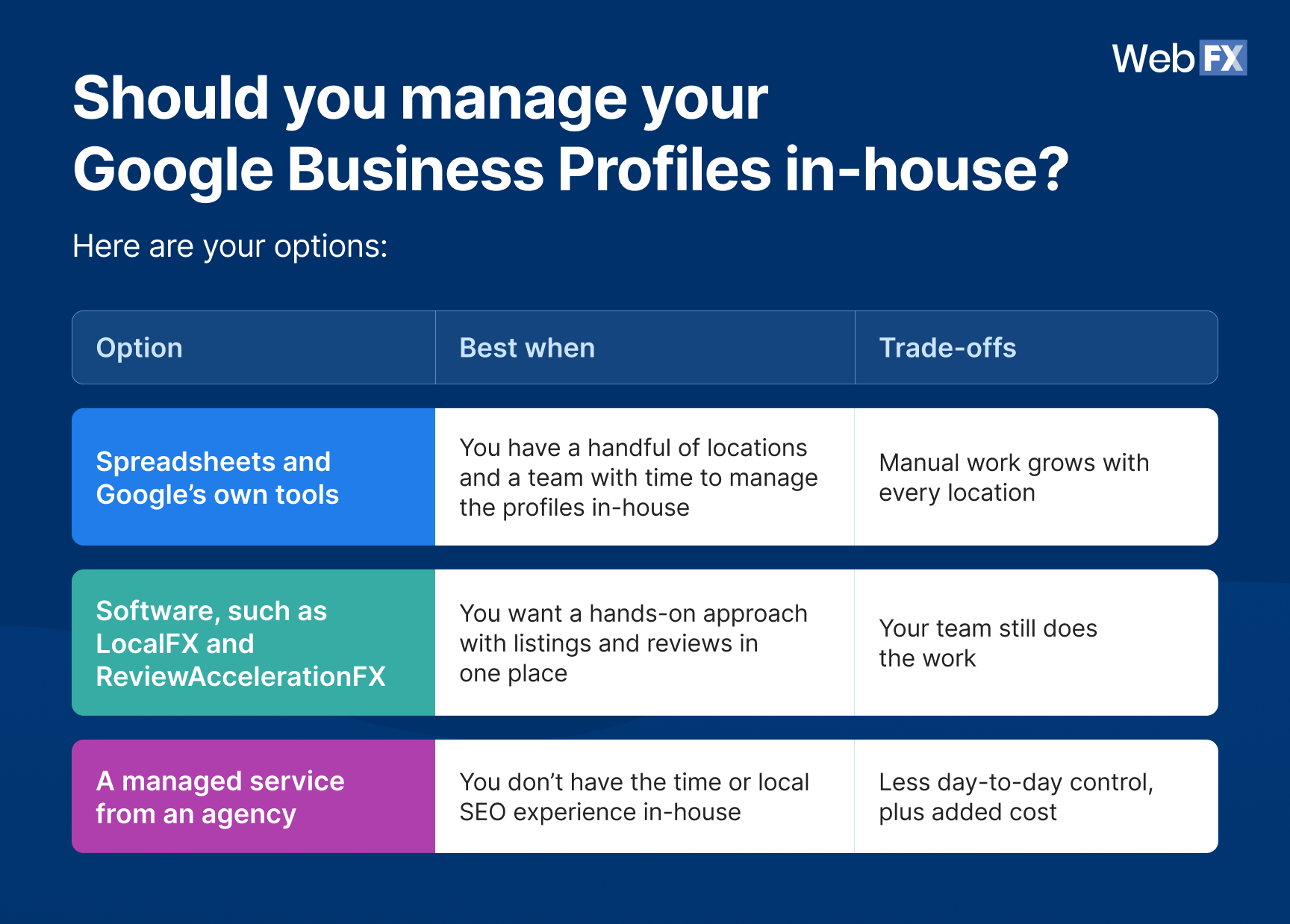
Table view
| Option | Best when | Trade-offs |
| Spreadsheets and Google’s own tools | You have a handful of locations and a team with time to manage the profiles in-house | Manual work grows with every location |
| Software, such as LocalFX and ReviewAccelerationFX | You want a hands-on approach with listings and reviews in one place | Your team still does the work |
| A managed service from an agency | You don’t have the time or local SEO experience in-house | Less day-to-day control, plus added cost |
FAQs
What is multi-location Google Business Profile management?
Multi-location Google Business Profile management is the process of creating, verifying, updating, and monitoring a separate profile for each of your physical locations. The goal is to maintain the accuracy and visibility of your profiles so your customers can find your locations.
Can I use the same business address for multiple Google Business Profiles?
Yes, if each profile represents a separate business. Businesses that share an address can each have their own profile when:
- Each business has a different name
- Each business has distinct, permanent signage
- Each business is eligible for a Google Business Profile on its own
How do I manage my Google Business Profile if I have multiple locations?
Put every location’s profile under one company-owned business group, then manage all of them from a single account and system. That system has four parts:
- One master record with each location’s approved details
- A dedicated team member responsible for each profile
- Shared playbook for profile management
- A calendar of regular checks
If you have 10 or more locations, Google’s Business Profile Manager lets you add, verify, and edit them in bulk through a spreadsheet. For smaller businesses, Google’s Business Home offers a simpler way to update hours and respond to reviews. Business Home is still in beta and available only to select business categories in the US and the UK.
Can I merge two locations’ Google Business Profiles?
Yes. You can request a merge when two profiles represent the same business at the same address.
Google reviews every merge request, and the profiles should have matching details before you submit. When two profiles are successfully merged, their reviews are combined, but replies to reviews may be lost.
Should I remove a duplicate Google Business Profile or merge it with an existing one?
Merge the profiles when they both have activity worth keeping, such as reviews and photos. Remove the extra profile if it was created by mistake and has little or no activity.
Pro tip: Decide what to do based on the profiles’ activity and not just which one you can access. If you can’t access the profile with more reviews and photos, regain access first by requesting it from the current owner.
WebFX has a track record of success in driving measurable results for businesses like yours.
See how we do it

$10 billion
Revenue Driven For Clients

200+
Industries of Expertise

93%
Client Satisfaction Rating

9:1
Dedicated FXers Per Client
Fix your multi-location Google Business Profile management woes with the experts
You’ll run into a few speed bumps as you manage multiple Google Business Profiles, especially as you expand to new locations or acquire new brands. If you need help fixing problems with your multi-location listings, you can team up with WebFX.
Our team has 4.5 million hours of industry experience helping our clients manage their campaigns and listings, and grow their bottom line in the process. RevenueCloudFX, our proprietary platform, also features tools that can help you update your listing through a single dashboard (LocalFX) and respond to reviews (ReviewAccelerationFX).
Contact us online or call us at 888-601-5359 to speak with a strategist about our local SEO services and multi-location marketing services!
-
 Maria is a Lead Content Specialist at WebFX. With nearly two decades of experience in B2B and B2C publishing, marketing, and PR, she has authored hundreds of articles on digital marketing, AI, and SEO to help SMB marketers make informed strategic decisions. Maria has a degree in B.S. Development Communication major in Science Communication, and certifications in inbound marketing, content marketing, Google Analytics, and PR. When she’s not writing, you’ll find her playing with her dogs, running, swimming, or trying to love burpee broad jumps. View full profile
-

WebFX is a full-service digital marketing agency delivering revenue-driving strategies across online advertising, SEO and AI search optimization, and digital marketing. Backed by 1,100+ client reviews, a 4.9-star rating on Clutch, and proprietary revenue-tracking technology, our team helps businesses grow visibility and revenue across platforms, from Google to ChatGPT to LinkedIn. Discover how our expert team and revenue-accelerating tech can drive results for you. Learn more

Try our free Marketing Calculator
Craft a tailored online marketing strategy! Utilize our free Internet marketing calculator for a custom plan based on your location, reach, timeframe, and budget.
Contents
- Problem #1: Unclear profile ownership and access
- How do you fix your fragmented Google Business Profile access?
- Problem #2: Duplicate profiles
- How do you know whether to merge or remove a duplicate profile?
- How do you prevent duplicate profiles?
- Problem #3: Wrong or conflicting business details
- How do you keep every profile’s business details accurate?
- Problem #4: Identical content at every location
- How do you localize profiles without rewriting each one?
- Problem #5: Lack of a review management system across locations
- How do you manage reviews across many locations?
- Problem #6: Verification and suspension problems
- How do you get every location verified?
- How do you keep locations verified and avoid suspensions?
- How do you audit all your Google Business Profiles?
- How do you manage multiple Google Business Profiles long-term?
- 1. Decide who’s accountable for each profile
- 2. Schedule regular checks
- 3. Decide what to handle in-house and where to get help
- FAQs
- Fix your multi-location Google Business Profile management woes with the experts
Share this article


SEO Success with KOA

Try our free Marketing Calculator
Craft a tailored online marketing strategy! Utilize our free Internet marketing calculator for a custom plan based on your location, reach, timeframe, and budget.