



 Best Place to Work in PA

Instructions for Generating your Google Maps API Key
1. Log in with any google account to Google's API Tool
If you do not have a google account, you may click the "Create account" link and walk through the steps. Make note of the username (email address) and password that you create.
2. Once logged in you will see a page like this:
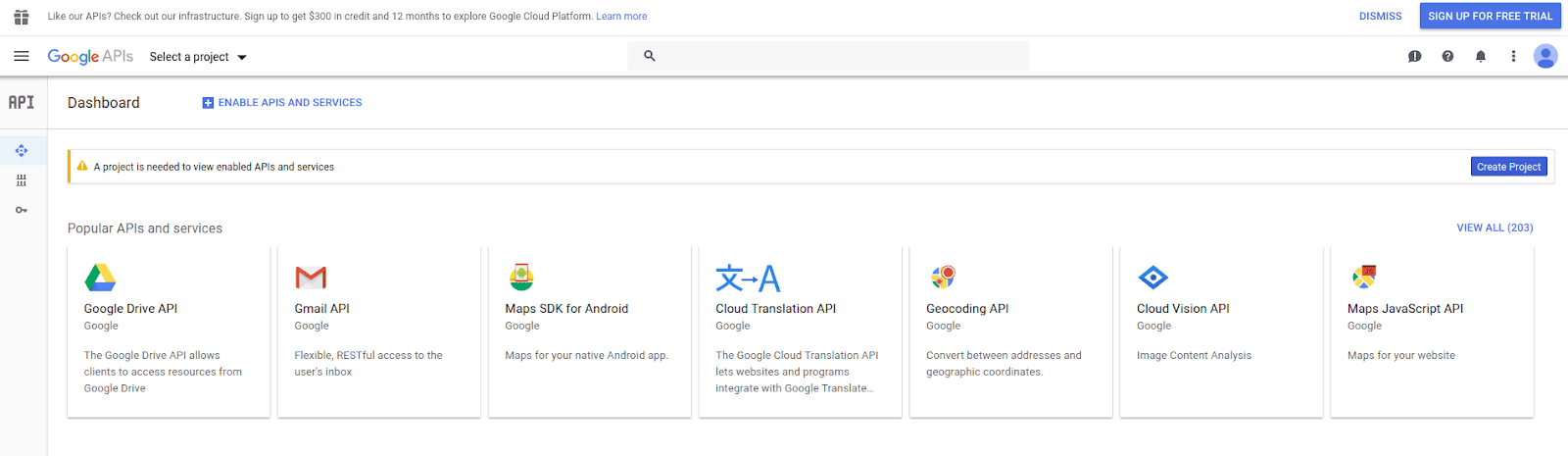
Open the menu in the top left, then click "Billing"

3. From there, Click "Add billing account"
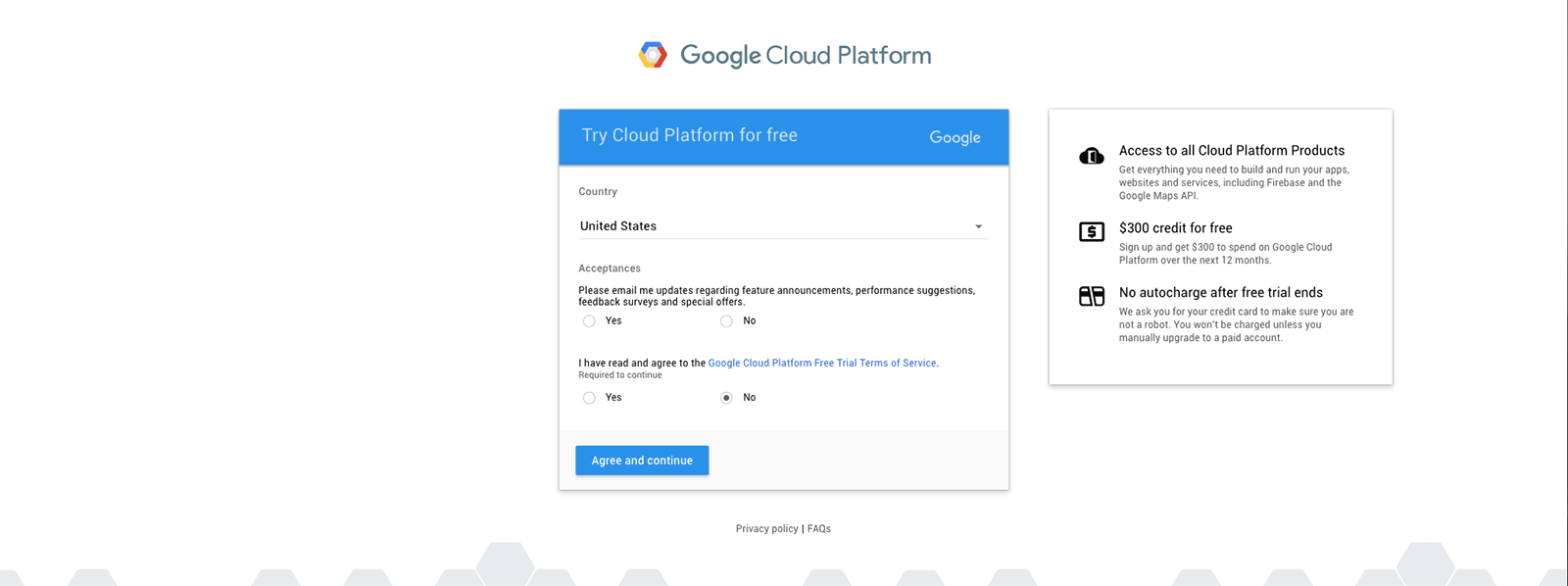
If you created a new account or see a notification bar across the top of your screen about a trial, please make sure to activate the billing account you've added. This step ensures the map connection won't be interrupted at the end of the trial.
4. Once you are finished entering your billing information, you will see a page like this:
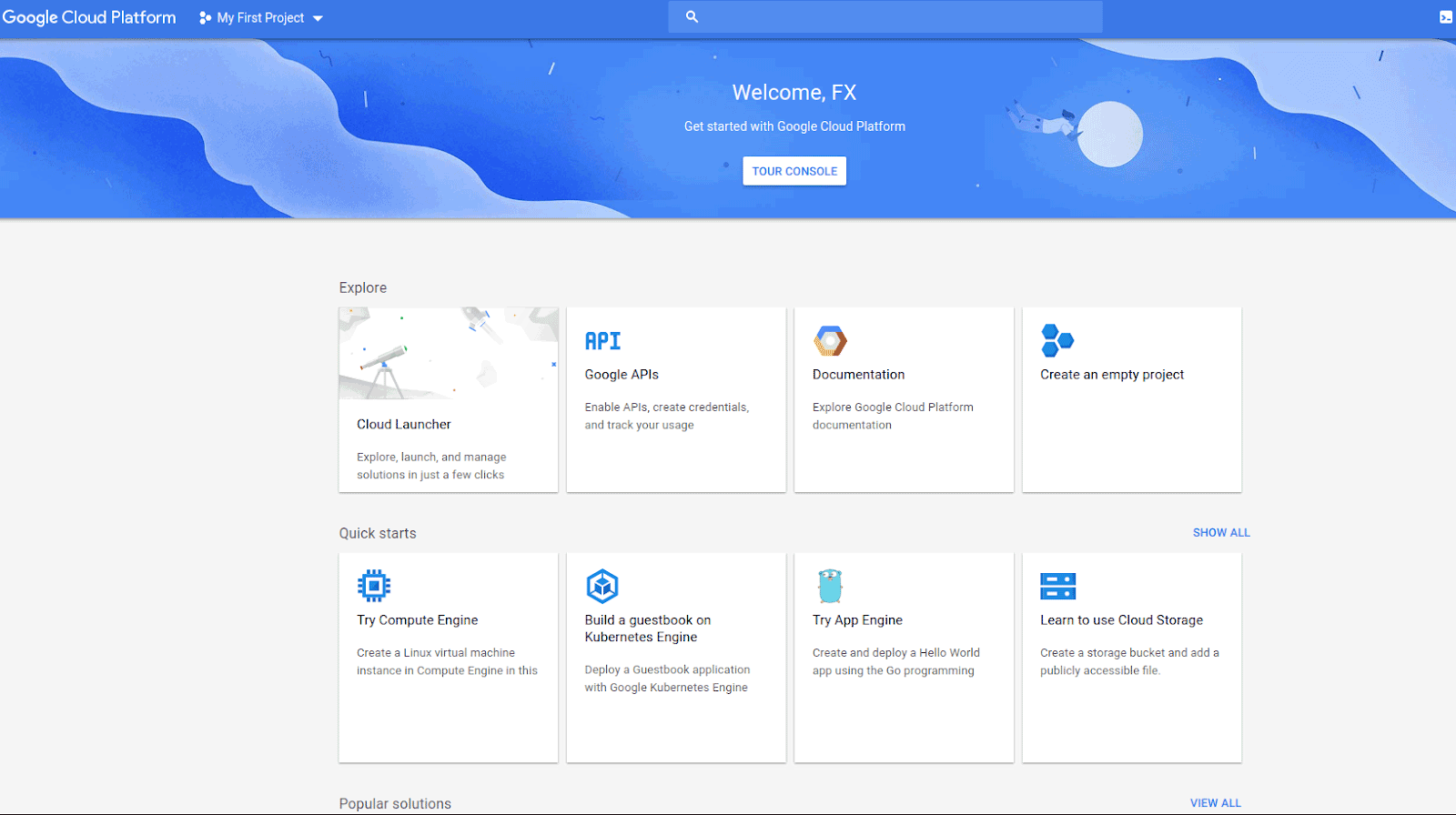
- continue by opening the menu in the top left and clicking, "APIs & Services"
5. Then click "Enable APIs and Services"
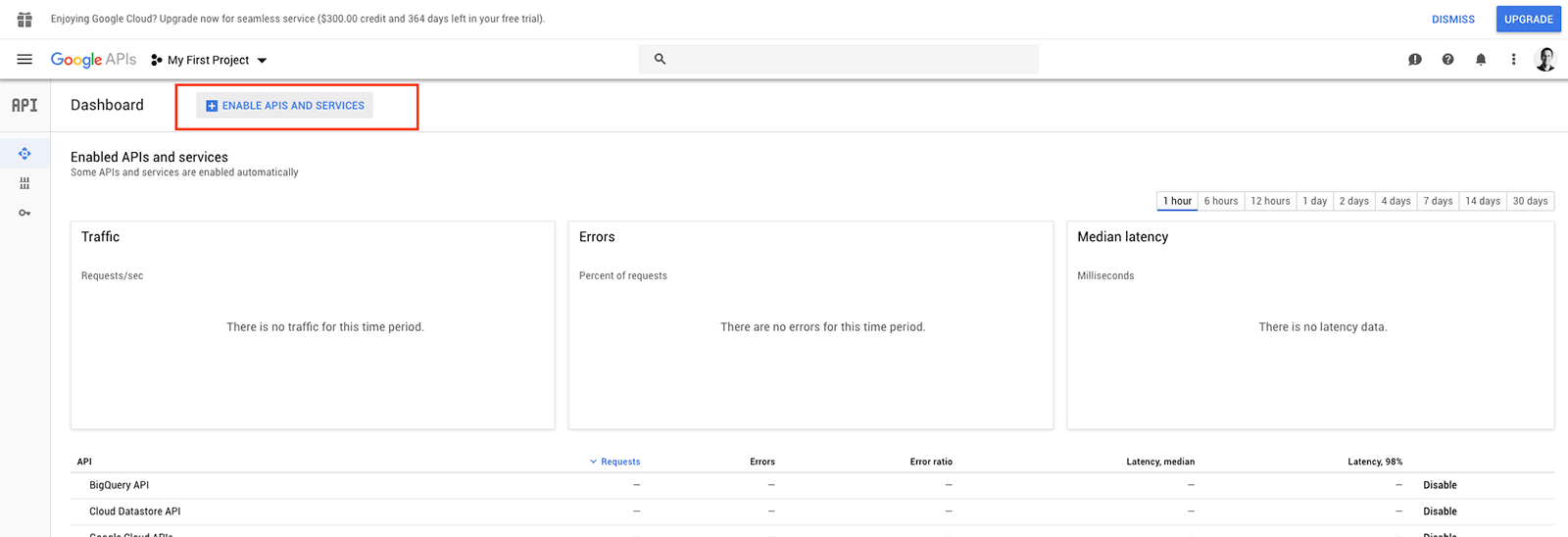
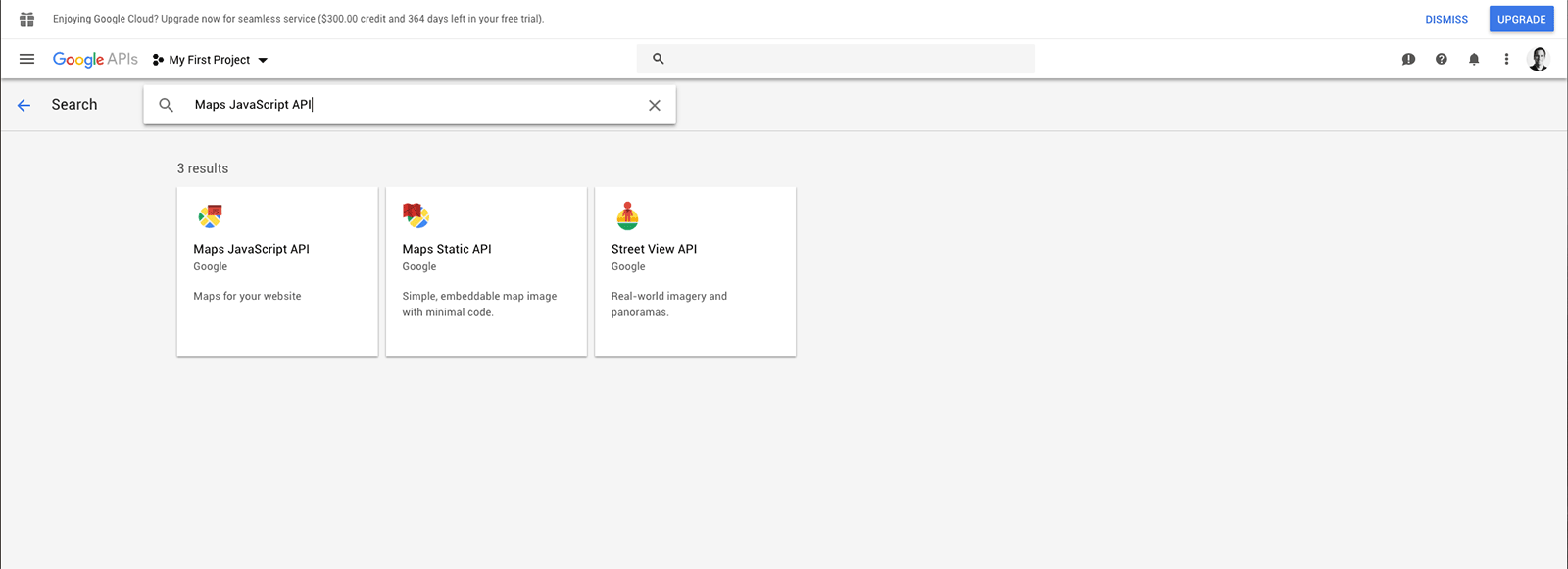
6. In the search field, type "Maps JavaScript API" and click the result with that name
7. Then Click "Enable"
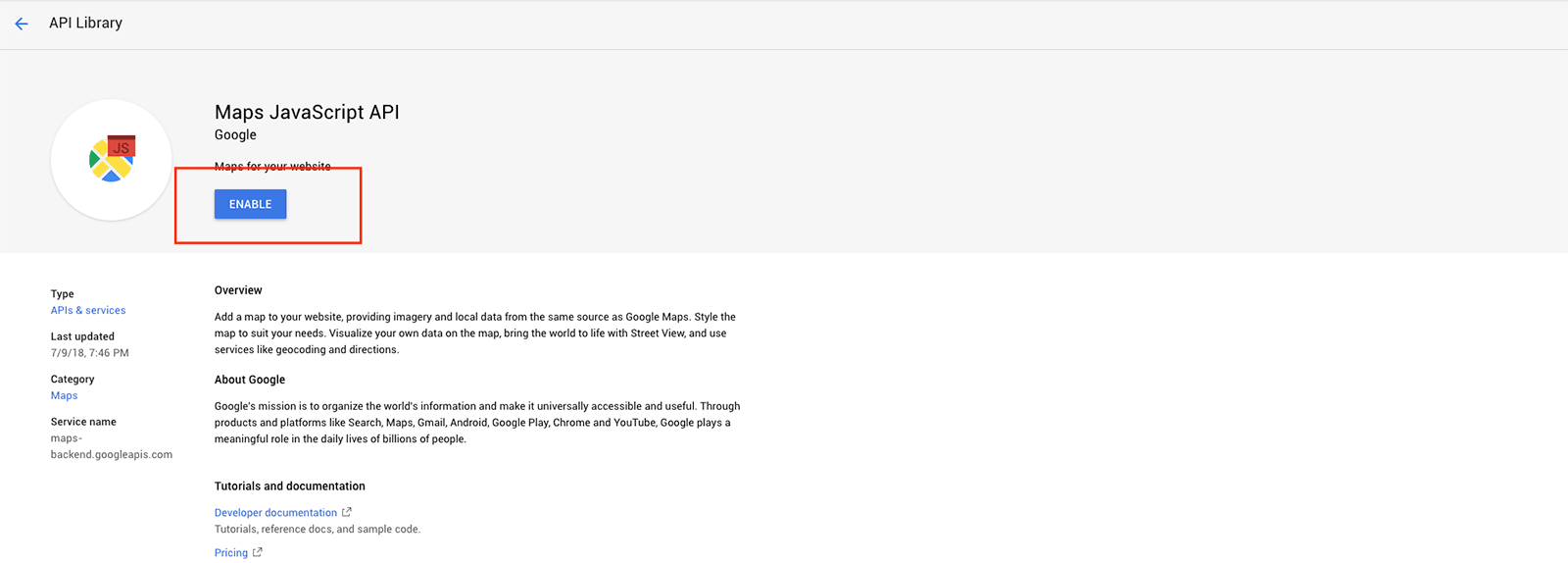
8. Repeat steps 6 and 7 for "Geocoding API" and "Places API"
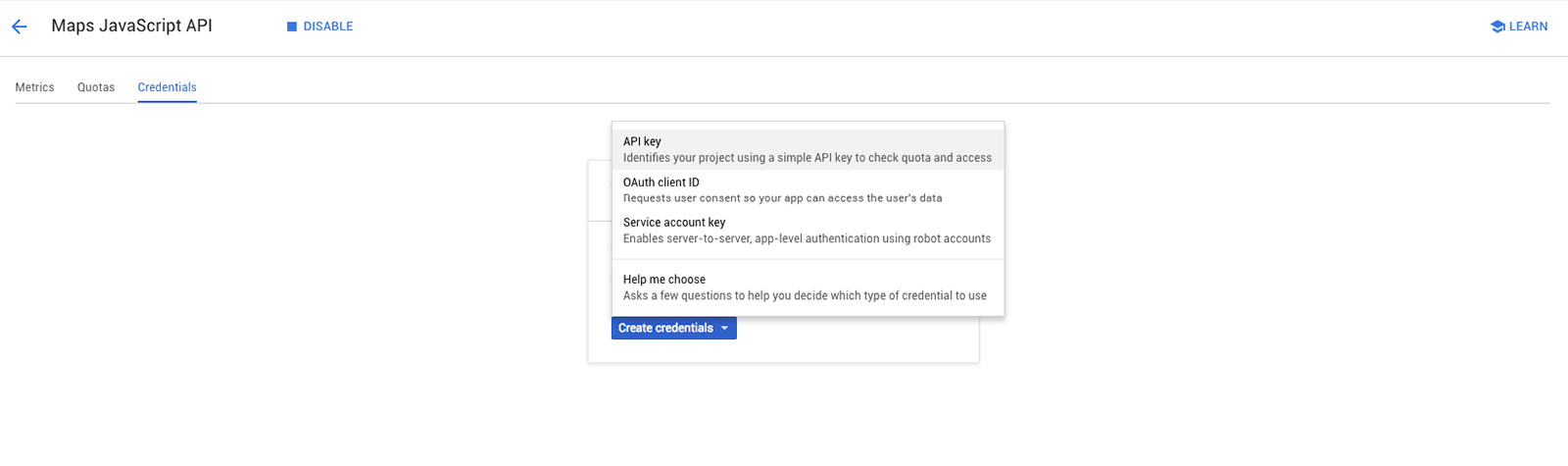
9. When "Enabling API" finishes, click the "Credentials" tab
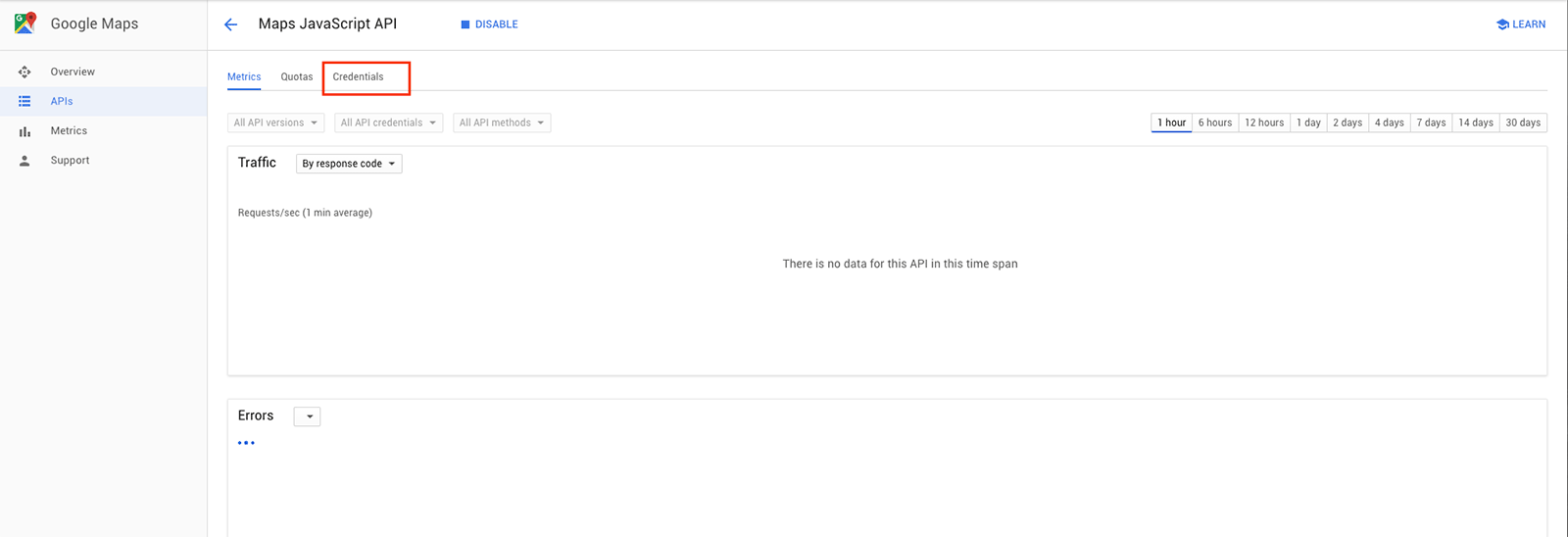
10. Click "Create credentials", then select "API key"